Review and approve a proof
Open your proof, look it over, and approve it — or ask for changes.
A proof is the designer’s draft for you to check before it’s finished. You’ll get an email (and a text, if you gave a mobile) with a link to it.
Open the proof
- Press the link in the proof email. Or open My Requests and press Review Proof →.
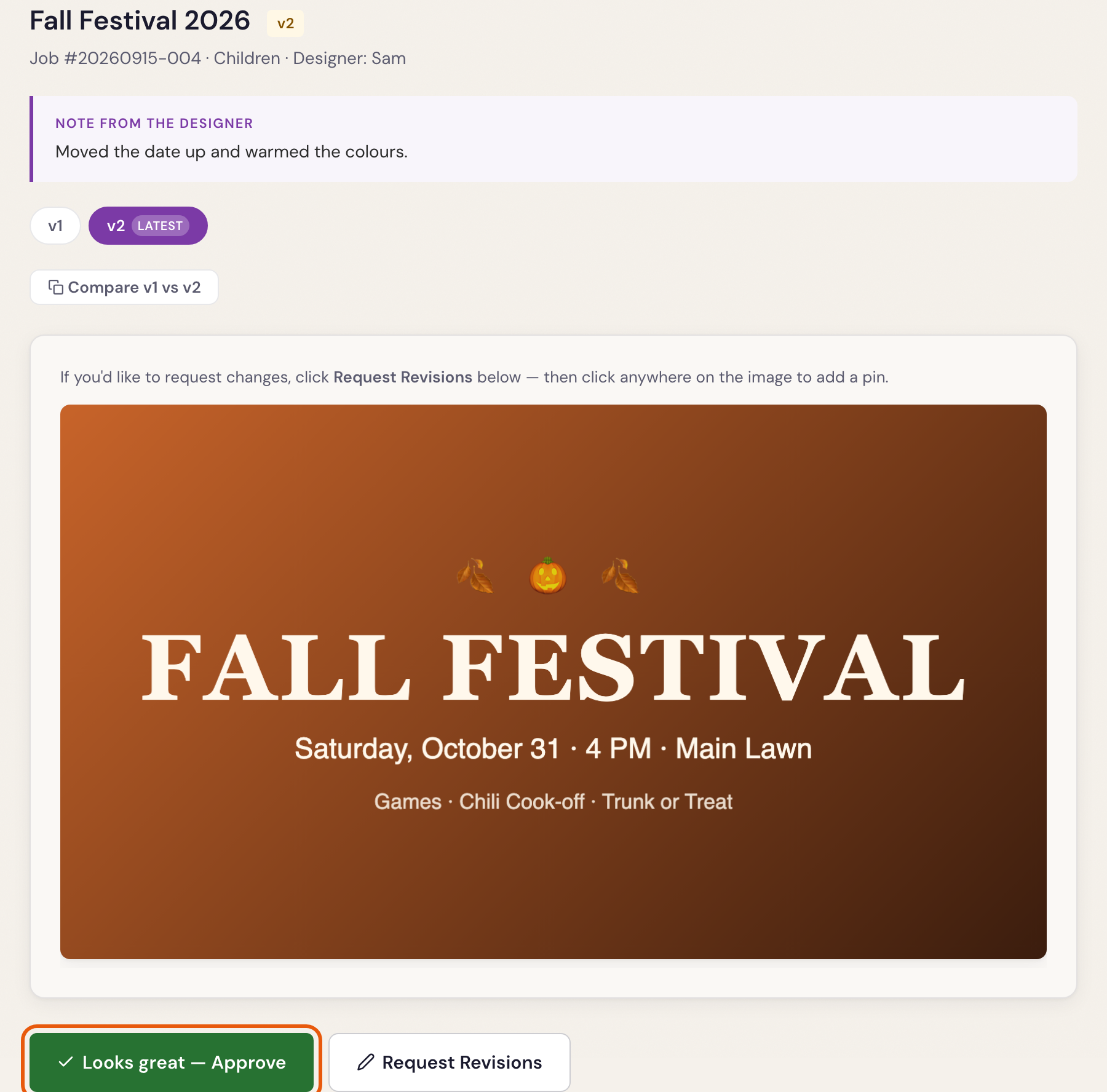
- The page shows the event name, which piece this is (for example Fall Festival Slide v2) and any Note from the designer.
- Look it over carefully: spelling, dates, times, places.
Approve it
- Press Looks great — Approve.
- Confirm. You’ll see Proof approved!
Approving isn’t the end. The designer still finishes every size and format you asked for. You’ll know it’s done when the Your project is ready email arrives. See Get your finished files.
Not quite right?
Press Request Revisions and say what to change. See Ask for changes on a proof.
When the designer sends options
Sometimes you get two or more designs to choose from. You’ll see tabs marked Option A, Option B. Look at each, then when you approve, pick the one you want under Which option are you approving?
Compare with the last version
On a second or later version, press Compare v1 vs v2 to see the old and new side by side. The tabs at the top (v1, v2 latest) open earlier versions. Only the latest can be approved.
A PDF proof
A booklet or other PDF shows one page at a time. Use ← Prev and Next → to read every page, or Open PDF ↗ to see it full size.
Was something here unclear, or out of date? Email design@revival.tv or use Something unclear? at the bottom of the page.