← Help / Your requests and files
Check on your requests
My Requests shows every request you've made, where it stands, and what's waiting on you.
My Requests shows each of your requests with its status, proof date and designer.
Open My Requests
- Sign in (top right) with Planning Center, and every request you’ve made is listed.
- Not signed in? Enter your job number (e.g. 20260613-001) or the email you used, and press Search. Or go to My Design Requests and press Send Link: you’ll get an email link that shows them all.
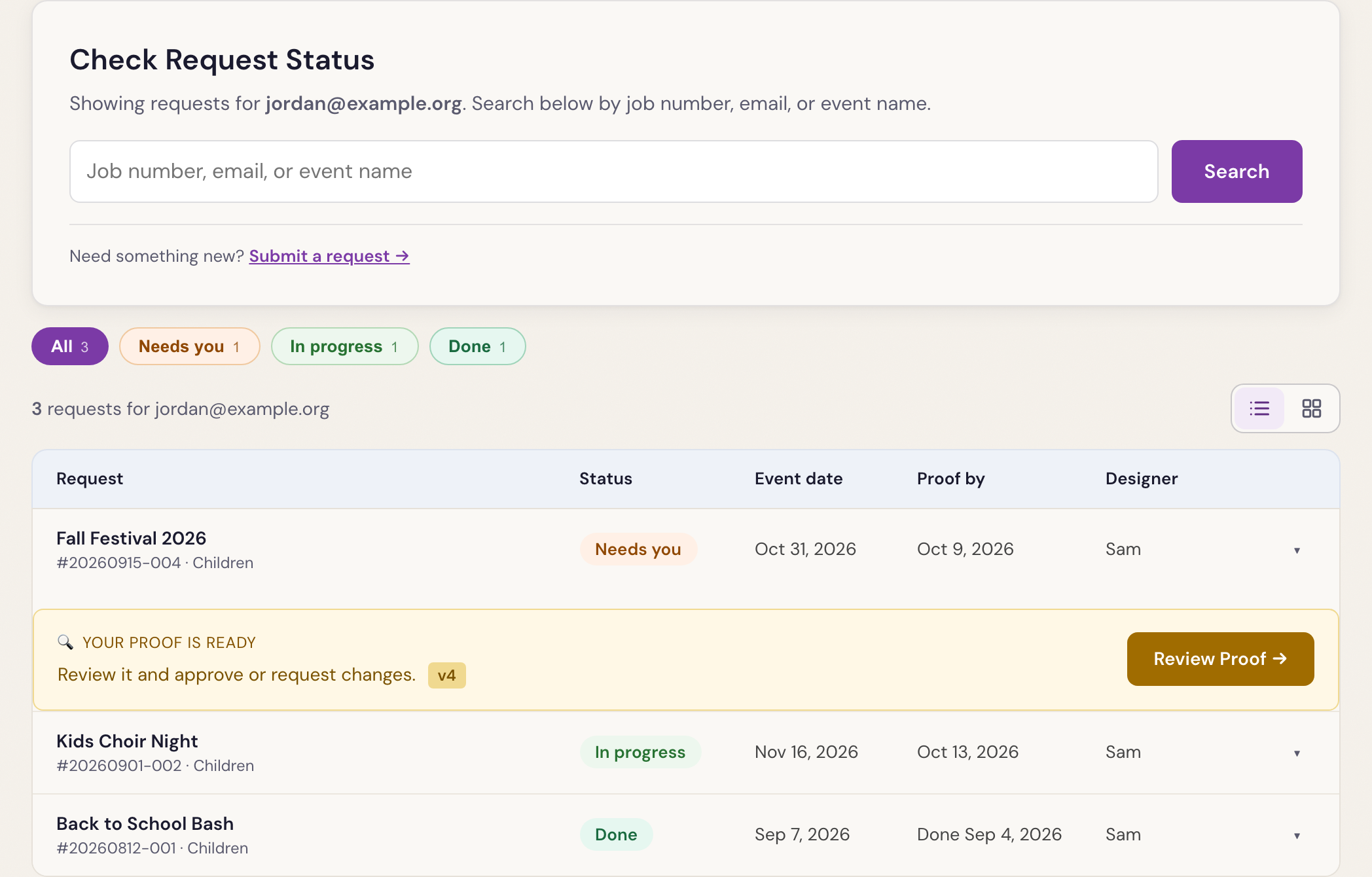
Find one
- Signed in, you can search by job number, email, or event name. Try one distinctive word, like “breakfast”.
- The buttons along the top (Needs you, Waiting, In progress, Done) show just those.
- Switch between List view and Card view with the buttons at the right. The page remembers your choice.
What the statuses mean
- Needs you: a proof is waiting for you, or the designer asked a question.
- Waiting: the designer is waiting on something from you. Answer under ⏳ Waiting on you with Send Response.
- In progress: it’s being designed.
- Done: finished. Your files are ready.
On each request
Open a request to comment or add files, change or cancel it, open the latest proof, or press 📎 View uploaded files →.
Was something here unclear, or out of date? Email design@revival.tv or use Something unclear? at the bottom of the page.